


Players usually receive their PokerStars Hand History (HH) and audit file by email.
HH file ordering
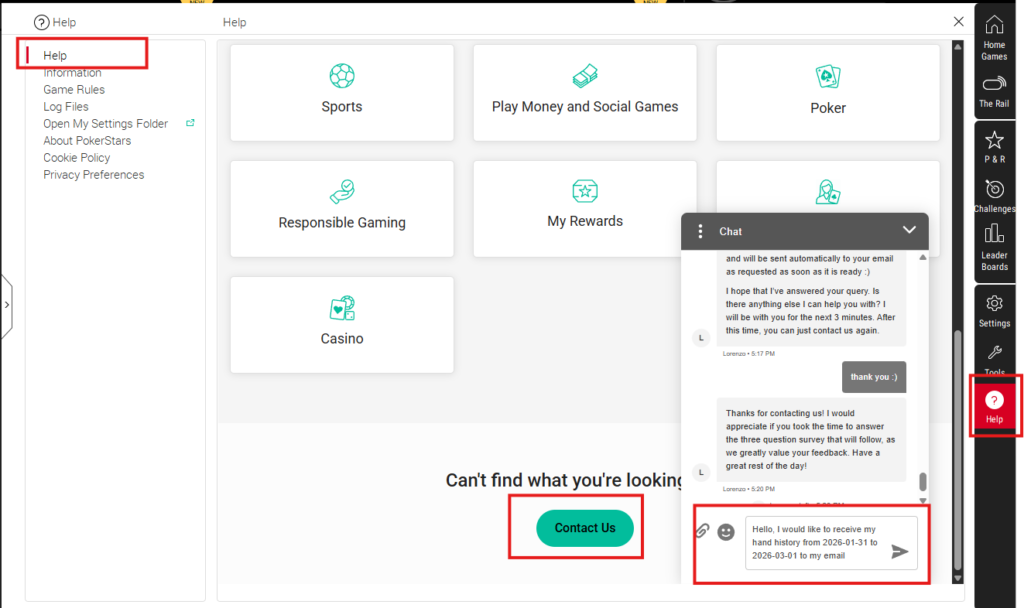
PokerStars players can request their HH (Hand History) via live chat in the PokerStars client:
- Open the PokerStars client and go to Help → Help.
- Click Contact Us. A chat window will appear.
- Ask support to send your hand history to your email. Recommendation: include one day before and one day after the month.
You will receive a download link in your personal email. Download the ZIP file.
Audit file ordering
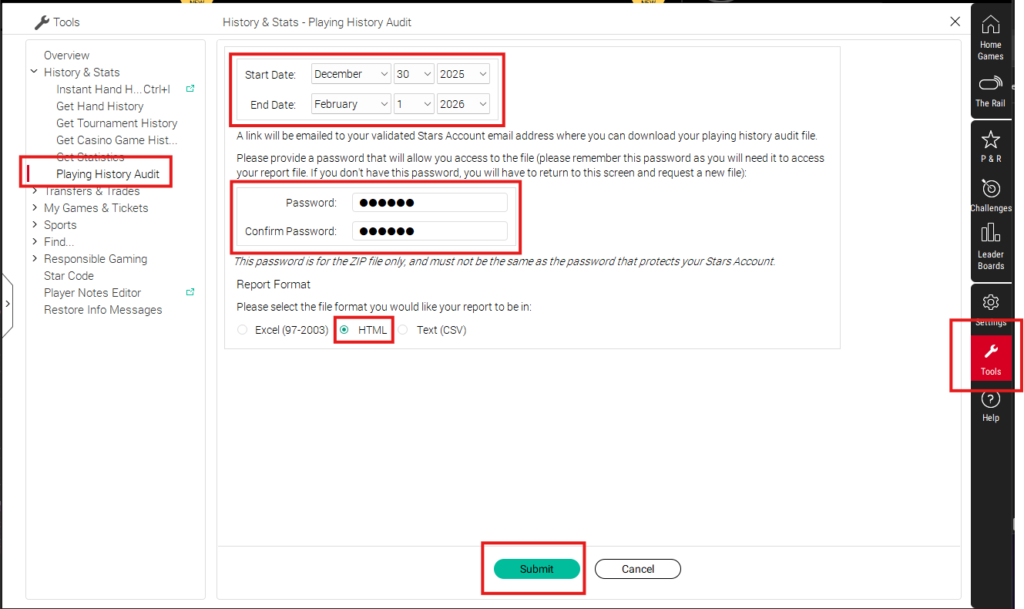
In the PokerStars client:
- Go to Tools → History & Stats → Playing History Audit.
- Select the date range for the month you want to verify.
Recommendation: include one day before and one day after the month. - Enter a password and re-enter it to confirm.
- Select HTML.
- Click Submit.
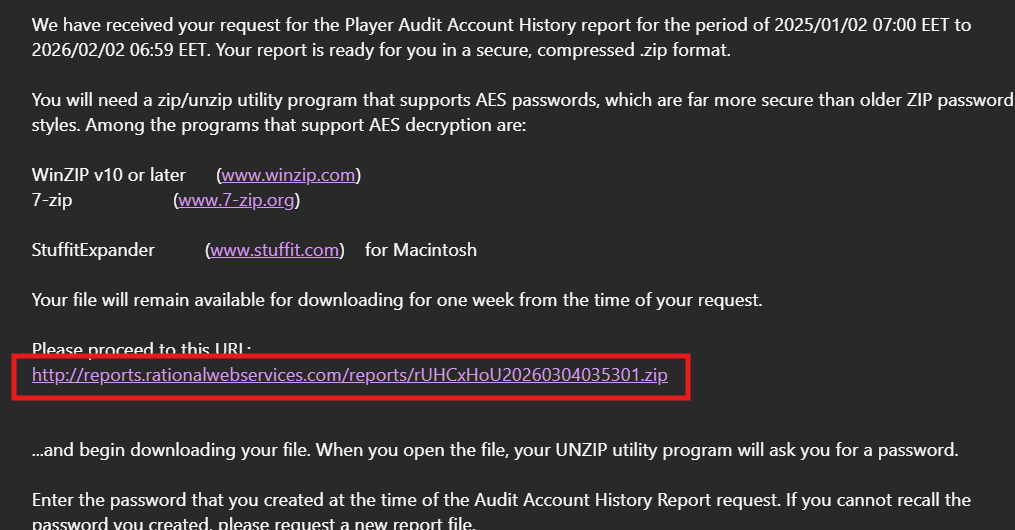
After a few minutes (or longer, depending on the audit size), you will receive an email with a download link.
HH Verification with PureTracker
- In PureTracker, go to HH Verification → PokerStars.
- Select your region.
- Select the correct verification period. By default, it is set to last month.
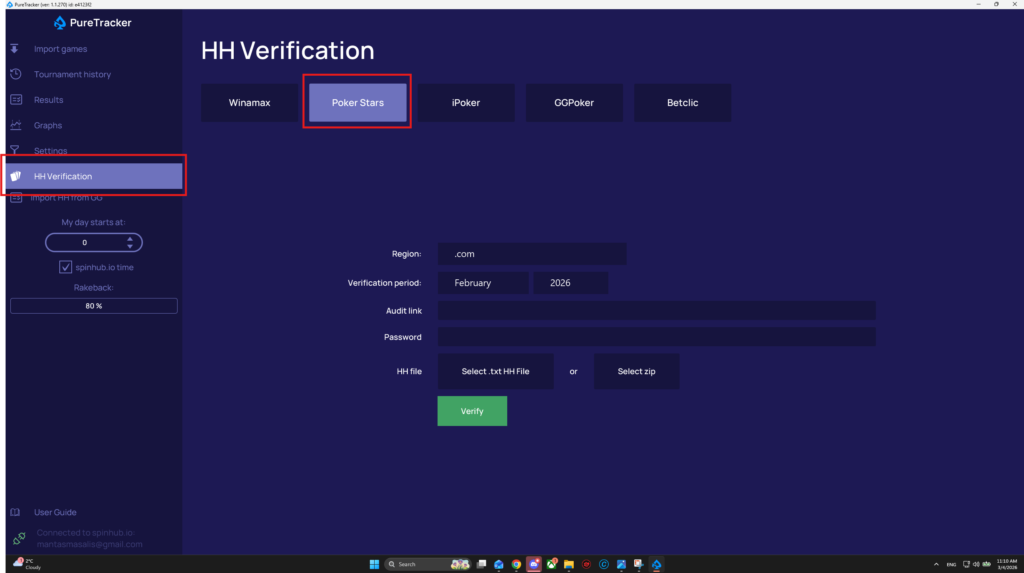
- From your email, copy and paste your audit link.
- Enter the password for your audit file.
- Select your HH file (it can be a
.txtfile or still in a.zipfile). - Click Verify.
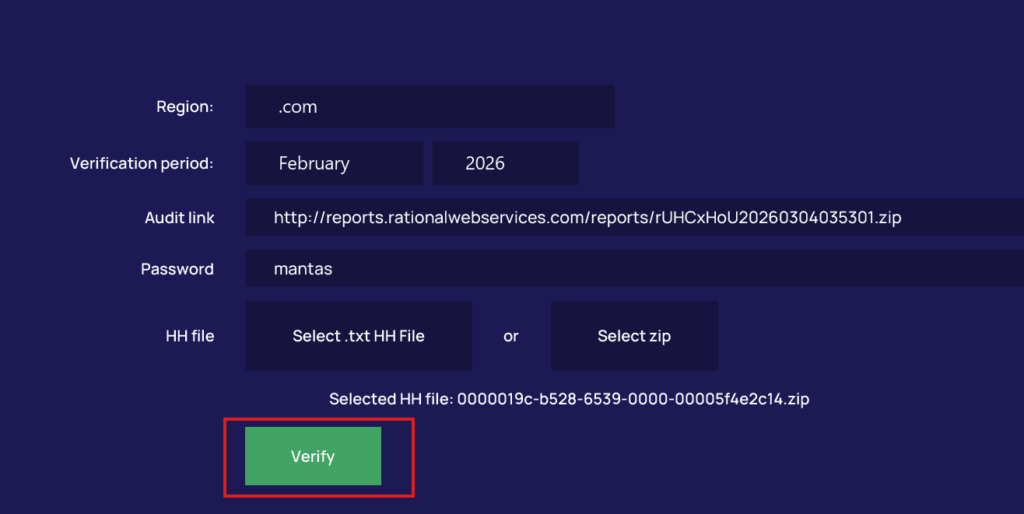
If everything is done correctly, you will see a Successful Verification message. If it fails, try again by re-entering the information, or contact the spinhub.io support team.