


For iPoker Hand History Verification, players need to order two HH files because there is a 30-day limit per request.
You should order two files that include the last day of the previous month and the first day of the next month to ensure complete HH Verification coverage.
Example:
May has 31 days, so to fully cover the month, order two HH files like this:
- From 04-30 to 05-16
- From 05-14 to 06-01
This way, all games will be uploaded and counted.
Ordering HH:
Log in to your poker client.
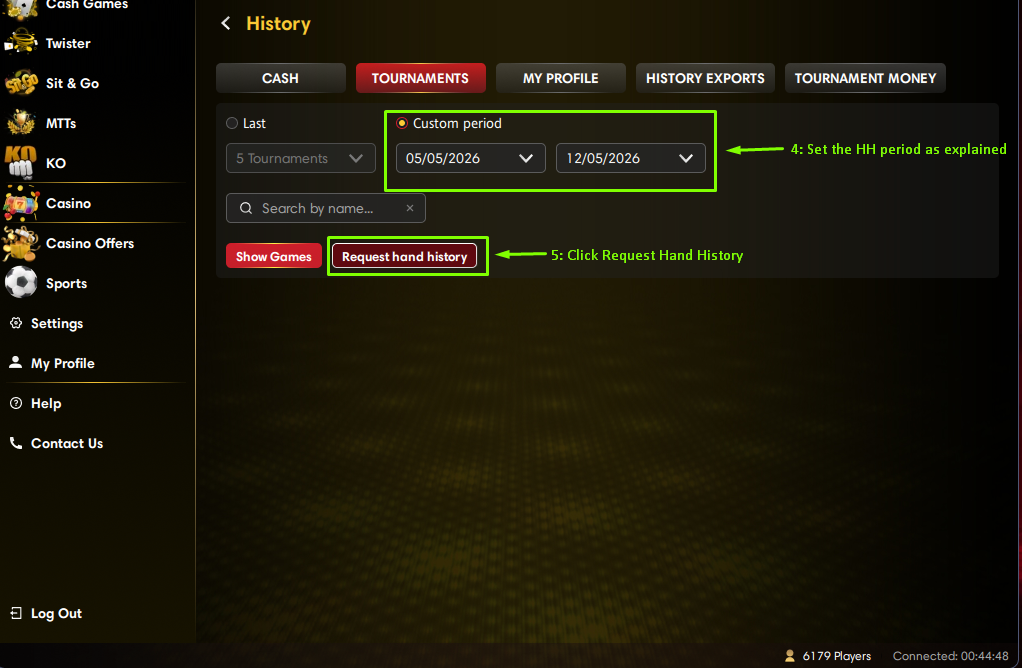
Go to My Profile → History → Tournaments.
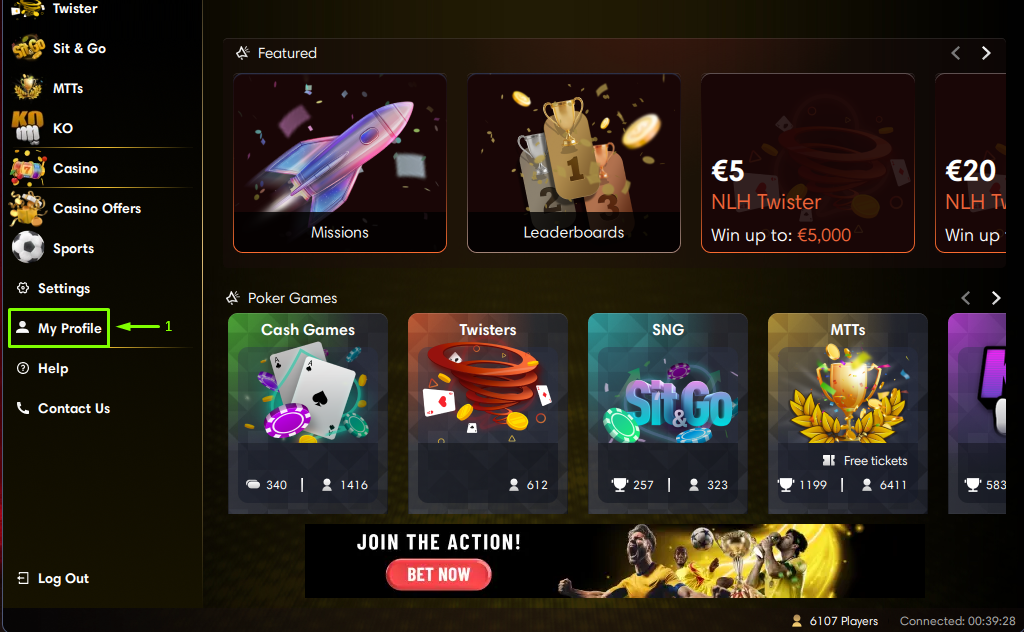
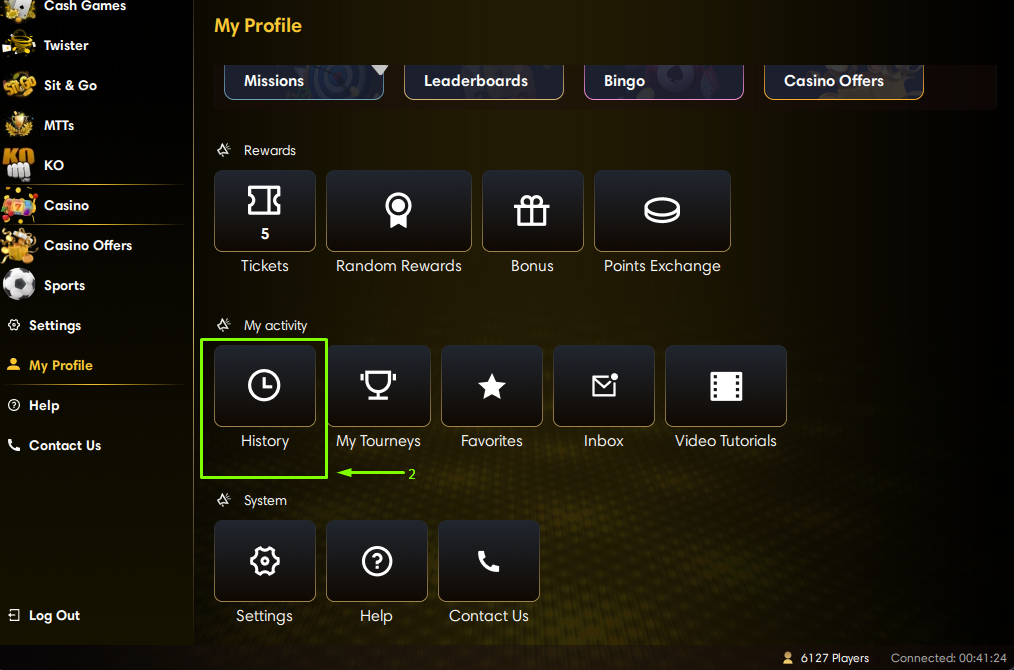
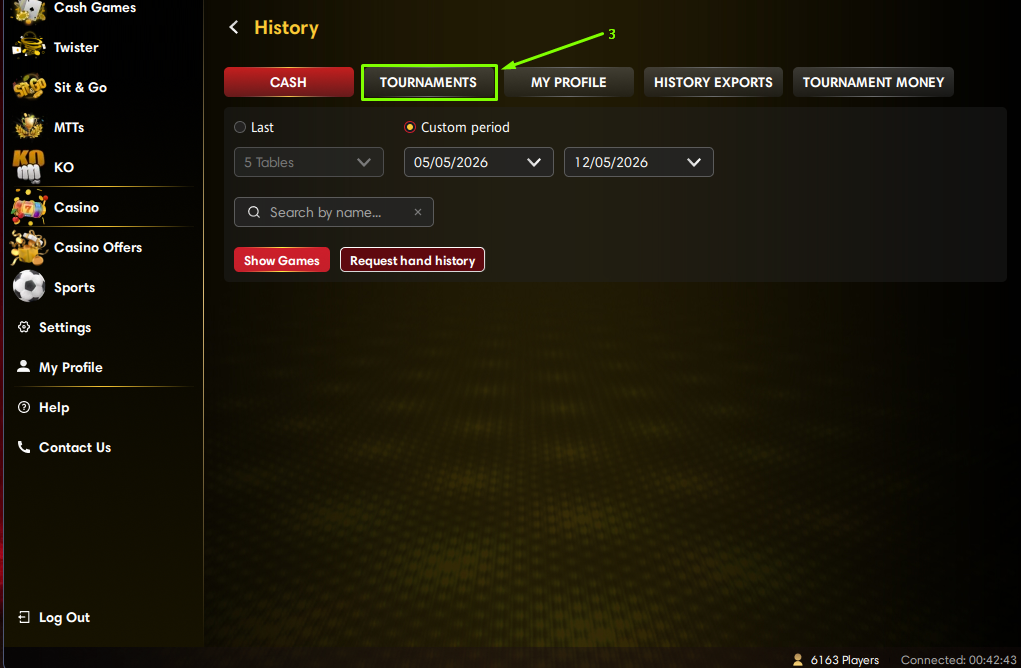
Set the HH period as explained above and click Request Hand History.
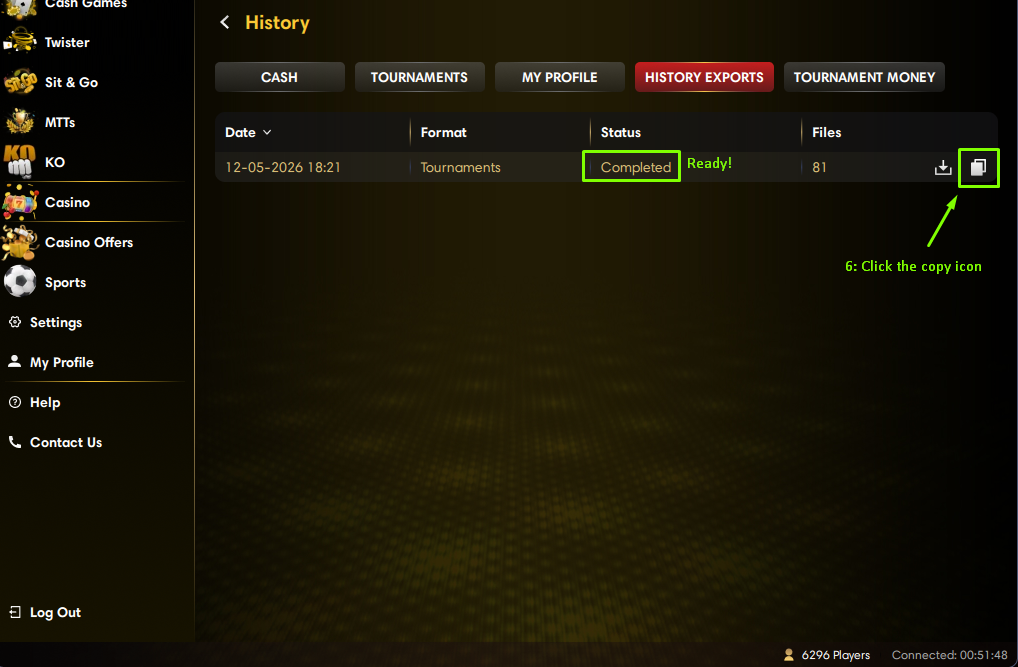
Open History Exports.
When your HH files are ready, you will see the status Completed.
Click the Copy icon.
Uploading to PureTracker
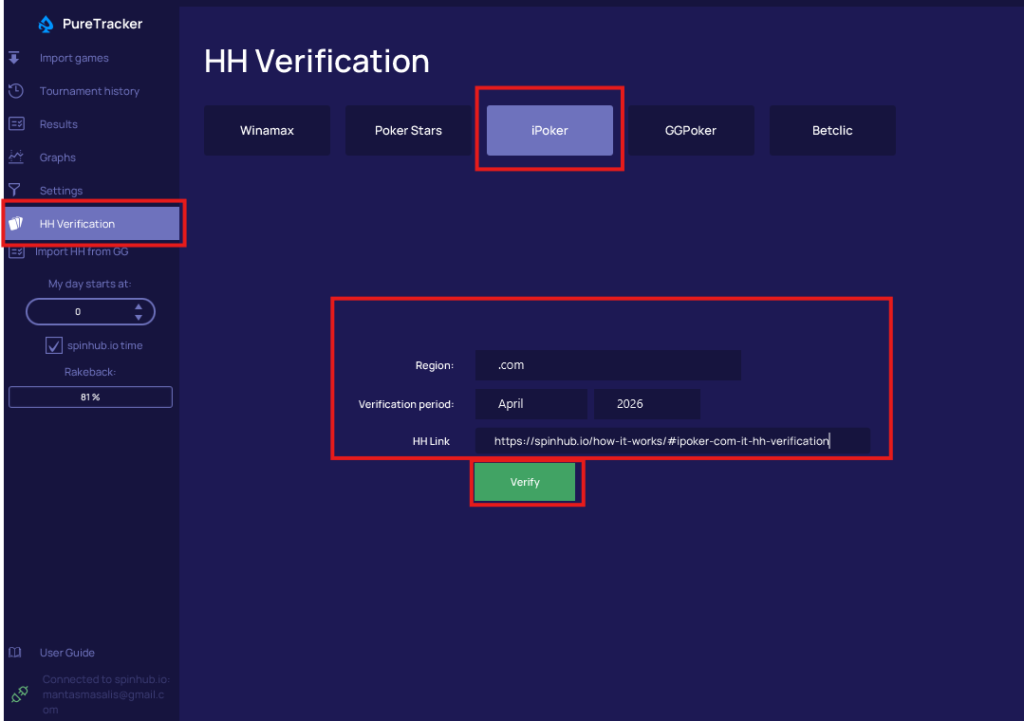
In PureTracker, click HH Verification on the left menu. Select iPoker.
Choose the correct region, month, and year.
Paste the link copied from the iPoker app.
Click Verify.
If the upload is successful, you will see a successful upload message.
Repeat the process with the second HH file.